GoPro Player for Android and Online: What Actually Exists and What to Use Instead
People search for GoPro Player for Android and GoPro Player online every day. Neither exists as such — here is what does, how Quik fits in, and how to move footage between phone and desktop.
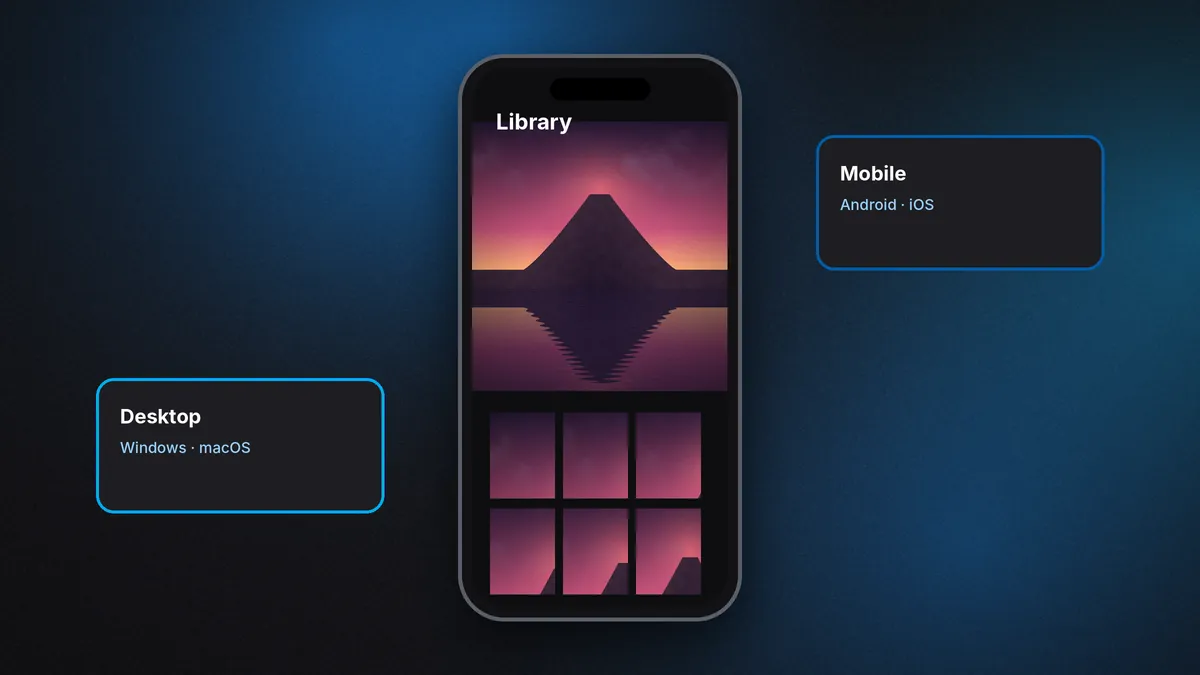
Two of the most common questions about GoPro Player have the same honest answer. "Is there GoPro Player for Android?" No. "Can I use GoPro Player online?" Also no. GoPro Player is a desktop application for Windows and macOS. That does not leave phone users or people on a borrowed computer stuck, though — GoPro's software is split across devices on purpose, and once you know which app does what, the workflow makes sense. This guide maps it out and flags the fake "Android Player" apps you should avoid.
Why GoPro Player is desktop-only
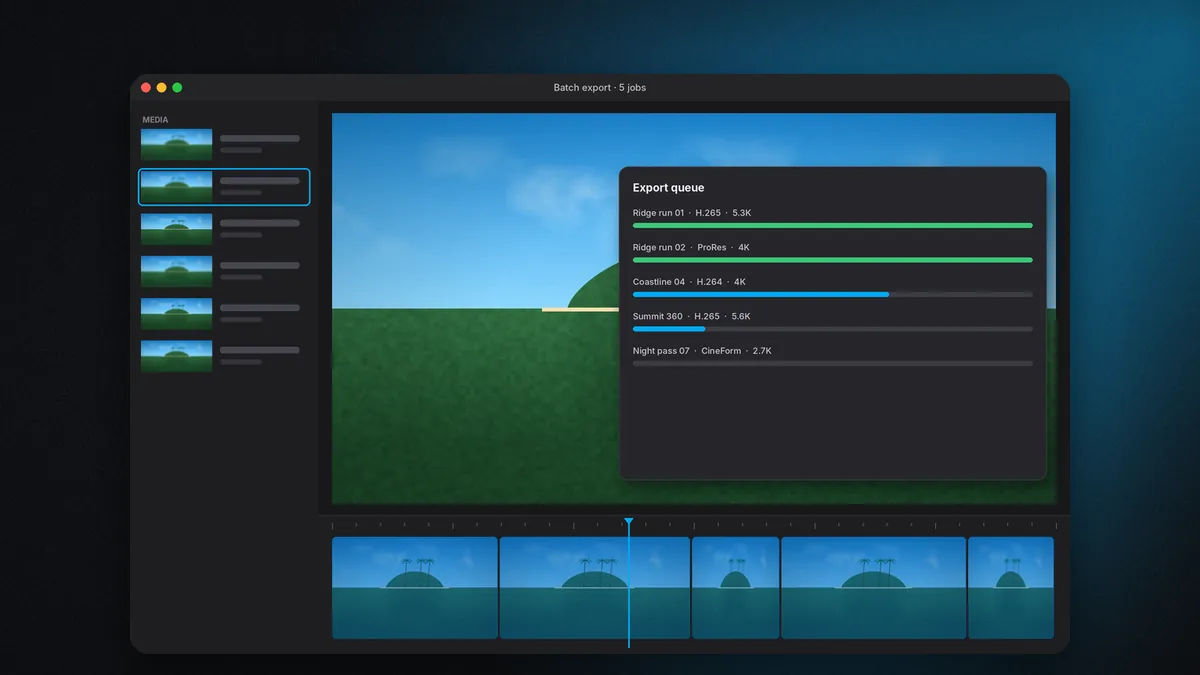
The features that define GoPro Player are computationally heavy. Real-time HyperSmooth Pro stabilization of 5.3K footage, 8K and 5.6K 360 playback, ProRes and CineForm export, and batch rendering of hundreds of clips all lean on desktop processors, graphics hardware and fast storage. GoPro itself warns that HyperSmooth Pro needs a powerful computer even on the desktop.
Phones have become remarkably capable, but sustained, heavy video processing is still where computers excel — and that is the job GoPro Player is built for. Instead of squeezing a reduced Player onto phones, GoPro gives mobile users a different app designed around phone strengths: wireless transfer, quick edits and sharing.
On Android: GoPro Quik is the official app
GoPro Quik is available on Android and iOS through Google Play and the App Store. It is the official mobile companion for GoPro cameras and covers most of what people actually want to do on a phone:
- Camera connection and control — preview, change settings and start recording remotely.
- Wireless offload of footage from camera to phone.
- Editing — trims, music, filters, speed changes and automatic highlight edits.
- 360 reframing for MAX-series footage, with keyframes for camera moves.
- Frame grabs from video.
- Cloud backup for GoPro subscribers.
What Quik on a phone does not offer is HyperSmooth Pro stabilization, desktop-class codecs like ProRes and CineForm, or a batch export queue. Those remain desktop features.
"GoPro Player online": what people usually mean
When someone searches for GoPro Player online, they generally want one of three things:
1. To watch GoPro footage without installing anything
Modern browsers can play H.264 MP4 files directly, and many can play HEVC if the operating system supports it. For a quick look at a clip, dragging it into a browser tab often works. It will not understand 360 metadata or gyro data, though.
2. To view footage stored in the GoPro cloud
GoPro subscribers can access their cloud media library through GoPro's website and the Quik app. That is the closest thing to an "online Player": you can view and download backed-up footage from any browser.
3. To stabilize or reframe without a powerful computer
This is the one that does not exist in GoPro's ecosystem. HyperSmooth Pro and desktop reframing run locally in GoPro Player. Any website offering to "stabilize GoPro footage online with ReelSteady" is not GoPro's service.
Beware of fake "GoPro Player" apps
App stores and APK sites periodically carry apps that borrow GoPro's name and icon style: "Player for GoPro", "GoPro Video Player Pro", "360 Player for GoPro" and similar. Some are harmless generic video players riding a popular search term. Others push aggressive ads, request unnecessary permissions or, in the case of sideloaded APK files, carry malware.
- Check the developer name. GoPro's apps are published by GoPro, Inc.
- Avoid APK downloads from outside Google Play entirely for camera apps.
- Be wary of any app requesting contacts, SMS or accessibility permissions to play video.
- Remember: GoPro does not publish an Android version of GoPro Player. Anything claiming to be one is by definition not official.
A workflow that uses both phone and desktop
The most efficient GoPro owners use each device for what it does best. Here is a pattern that works well:
- In the field: use Quik on your phone to check framing, change settings and grab a clip or two for an immediate social post.
- Same day: if you subscribe, let the camera auto-upload to the cloud while charging, so footage is backed up before you touch the card again.
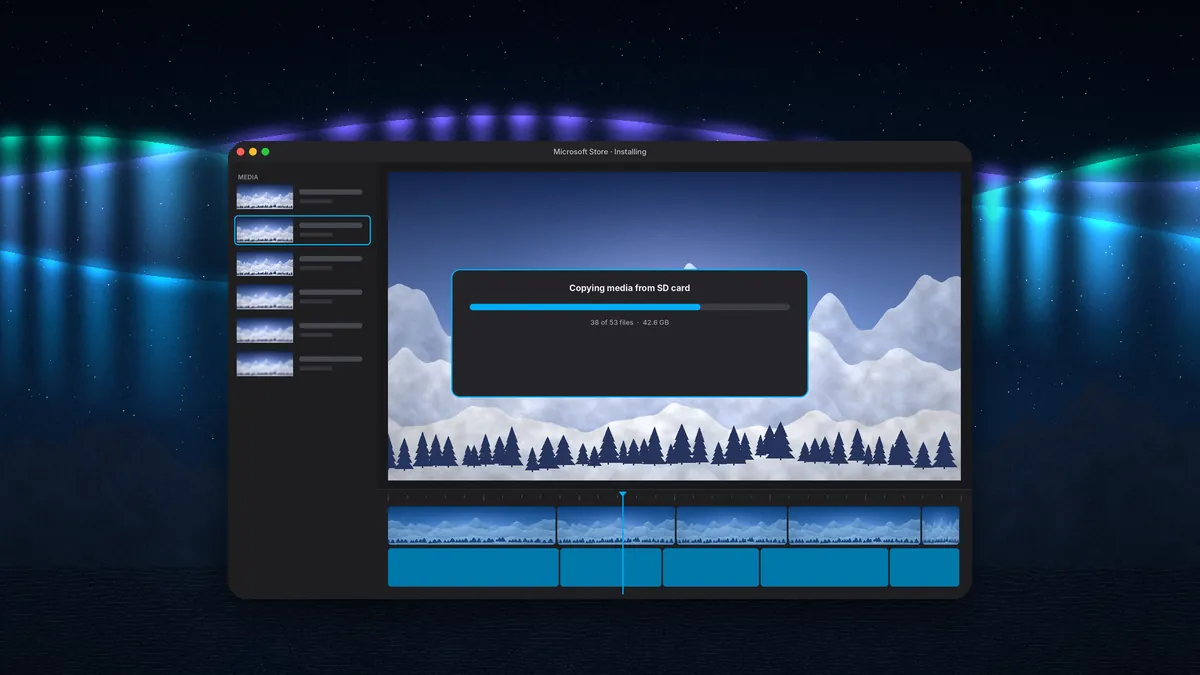
- At your desk: copy the full-resolution files from the SD card to an SSD. Open them in GoPro Player.
- In Player: stabilize with HyperSmooth Pro, reframe 360 clips, trim and grab stills.
- Export: use the batch queue for platform-ready files or editing intermediates.
- Back to the phone: transfer finished exports to your phone for posting, or upload directly from the computer.
Note that wireless offload to a phone can involve compressed versions depending on settings, while the SD card always holds originals. For desktop processing, start from the card.
When you only have an Android phone
If you do not own a computer, you can still get good results:
- Shoot with in-camera HyperSmooth on — without desktop stabilization, in-camera is your only stabilizer.
- Enable horizon leveling in camera where your model supports it.
- Do 360 reframing in Quik, which handles keyframes well for social-length clips.
- Keep originals on a backed-up drive or in cloud storage, so you can process them in GoPro Player later if you gain access to a computer.
When you only have a Chromebook or Linux PC
GoPro Player is built for Windows and macOS only. On ChromeOS, the Android version of Quik may run through the Play Store on supported models, giving you editing and reframing, though without desktop features. On Linux there is no official GoPro desktop software; general-purpose editors can play and cut the files, but gyro stabilization and GoPro-specific 360 tools will not be available in the same way.
Moving footage from an Android phone to a computer
If you offloaded clips to your phone with Quik and later want to process them in GoPro Player, you need to get them onto a Windows PC or Mac. There are a few reliable ways:
- USB cable: connect the phone, choose file transfer mode on the phone's USB notification, and copy the videos from the phone's storage. On a Mac, Android phones may need a file transfer utility.
- Cloud backup: GoPro subscribers can back footage up to the GoPro cloud and download it on the computer. Other cloud drives work too, though uploads of large 4K and 5.3K files take time on mobile data.
- Back to the SD card: often the simplest option is to leave the originals on the card and copy them directly to the computer with a fast card reader.
Whenever possible, process originals from the card rather than copies that have passed through a phone. Depending on settings and device, mobile transfers can involve compressed or re-encoded versions, which give the stabilizer and exporter less to work with.
Managing storage on Android
High-resolution GoPro clips fill phone storage quickly. A few habits keep Quik usable on a trip:
- Offload only the clips you plan to post from the phone; leave everything else on the card for the computer.
- Delete clips from the phone after they are backed up or posted.
- Use a microSD card in phones that still support one, and direct large files there.
- Carry a spare camera SD card rather than relying on the phone as overflow storage.
Android tablets
A large Android tablet makes Quik more comfortable for reframing and trimming, thanks to the bigger screen and longer battery. It does not change what the software can do, though. A tablet still runs the mobile app, not GoPro Player, so stabilization and professional codecs remain desktop jobs.
iPhone and iPad users
The same split applies on Apple's mobile devices. Quik runs on iPhone and iPad from the App Store, while GoPro Player runs on Mac. An iPad is not a substitute for the Mac version, even with a keyboard attached, because Player is not published for iPadOS. Apple users do get one extra convenience: footage moves easily between iPhone and Mac with AirDrop, which makes handing a clip from Quik to Player quick. For full-quality work, the SD card remains the better source.
Comparing the options
| Need | GoPro Player (desktop) | Quik (Android / iOS) | Browser |
|---|---|---|---|
| Play HERO footage | Yes | Yes | Often, codec-dependent |
| Reframe 360 with keyframes | Yes | Yes | No |
| HyperSmooth Pro stabilization | Yes (premium) | No | No |
| ProRes / CineForm export | Yes | No | No |
| Batch export | Yes | No | No |
| Camera control and wireless offload | No | Yes | No |
| Cloud library access | — | Yes (subscribers) | Yes (subscribers) |
Frequently confused names
GoPro's software lineup has changed many times, which feeds the confusion. A quick decoder:
- GoPro Player — desktop app for Windows and macOS (also a separate Apple TV viewer with the same name).
- GoPro Quik — mobile app for Android and iOS, plus a desktop edition GoPro introduced for Mac in 2024.
- ReelSteady / ReelSteady Go — the stabilization software GoPro acquired; now inside Player as HyperSmooth Pro.
- GoPro Studio, GoPro VR Player, Fusion Studio — older, discontinued desktop tools you may find referenced in old tutorials.
Bottom line: there is no GoPro Player for Android and no GoPro Player online. On phones, use GoPro Quik from Google Play or the App Store. For stabilization, professional codecs and batch export, use GoPro Player on Windows or Mac — installed only from the official stores.
Ready to set up the desktop side? Start with the GoPro Player download guide.