GoPro Player Price Explained: What Is Free and What You Pay For
The app is free, the stabilizer is not. Here is exactly what each route costs, what changed in 2022 and 2024, and how to decide whether paying makes sense for your footage.
"How much does GoPro Player cost?" has a simple answer and a complicated one. The simple answer: nothing — the app is free to download and use. The complicated answer involves a premium stabilization feature that has changed name, packaging and pricing model over the last few years. This guide sorts it out so you can decide whether you need to pay at all, and if you do, which route makes sense.
The short version
| Feature | Cost |
|---|---|
| Download and install (Windows, macOS) | Free |
| Playback of HERO and MAX footage, including 360 and 8K formats | Free |
| 360 Reframe with keyframes and World Lock | Free |
| Frame-accurate trim | Free |
| Frame Grab (full-resolution stills) | Free |
| Horizon Leveling | Free |
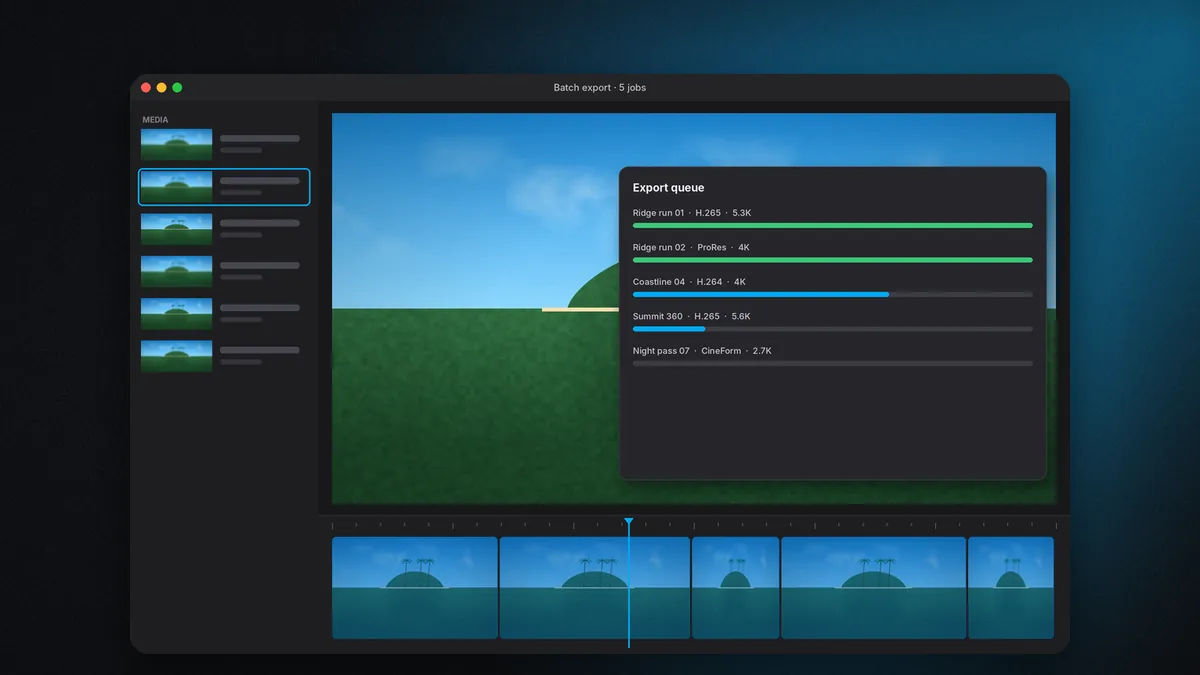
| Batch export with presets | Free |
| HyperSmooth Pro stabilization | Paid |
| Lens correction | Paid (part of HyperSmooth Pro) |
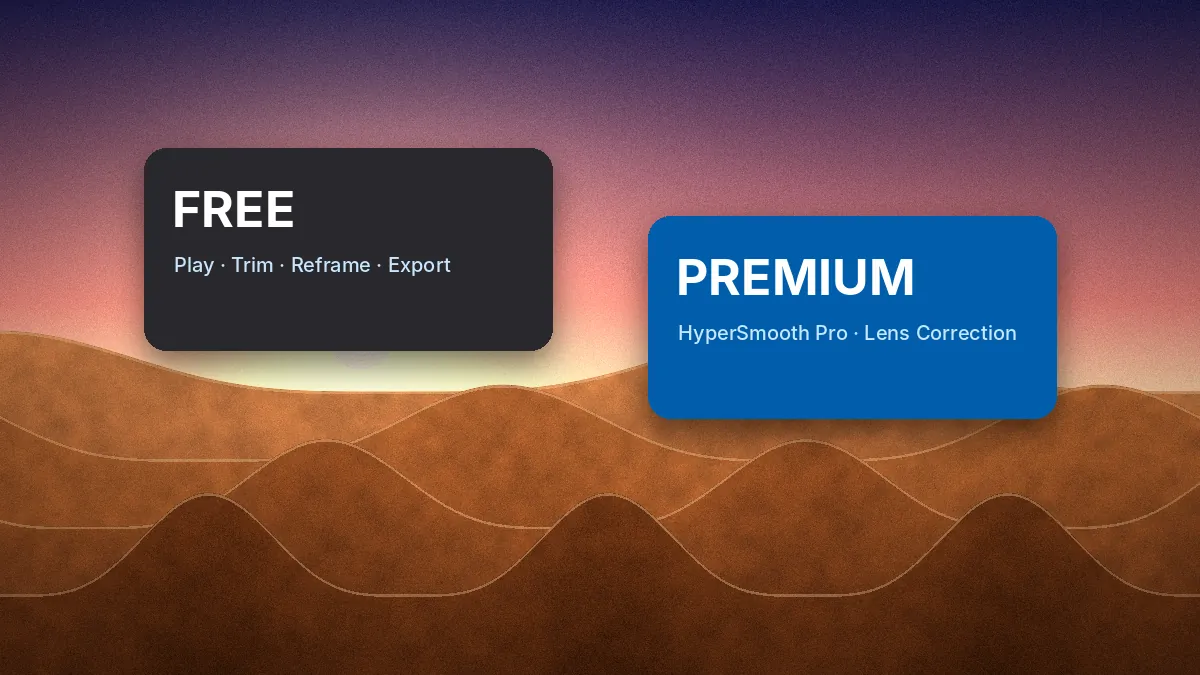
GoPro's own wording is straightforward: HyperSmooth Pro is a premium feature that requires an in-app purchase, and all other features are available for free.
How the pricing has changed
Understanding the history explains why you will find conflicting numbers online.
Before 2022: ReelSteady Go as a separate app
ReelSteady Go was a standalone desktop program sold for a one-time price of $99, with a free trial. GoPro Player existed separately as a free viewer and 360 exporter.
April 2022: GoPro Player + ReelSteady
GoPro merged the two. The free Player gained ReelSteady stabilization, lens correction and batch export, with premium features unlocked by a $99.99 one-time in-app purchase in the US (and around €99.99 in Europe). Existing ReelSteady Go owners could unlock with their existing activation key. Some camera bundles, such as the HERO10 Black Bones for FPV pilots, included the license.
February 2024: HyperSmooth Pro and Premium+
GoPro reorganized its subscriptions. The original GoPro Subscription became GoPro Premium, and a new Premium+ tier launched at $99.99 per year (with a discounted upgrade for existing subscribers). Premium+ includes everything in Premium plus HyperSmooth Pro video stabilization and extra cloud storage for footage from non-GoPro cameras.
The stabilizer itself is now branded HyperSmooth Pro inside Player. Prices differ by country and change over time, so treat the figures here as historical reference and confirm the current price in the Microsoft Store or App Store listing, or in GoPro's subscription terms.
Two ways to unlock HyperSmooth Pro
Route 1: In-app purchase
Bought through the Microsoft Store or Mac App Store and tied to your store account. This suits people who want stabilization on the desktop and nothing else from GoPro's subscription — for example, FPV pilots who never use cloud storage and do not need camera replacement perks.
Good for: one platform, no interest in cloud backup, preference for owning rather than renting.
Route 2: GoPro Premium+ subscription
An annual subscription that bundles HyperSmooth Pro with GoPro's subscriber benefits: unlimited cloud backup of GoPro footage, extra storage for other cameras, editing sync with Quik, camera replacement coverage and accessory discounts, among others. Sign in with your GoPro account inside Player to activate it.
Good for: people already paying for a GoPro subscription, owners of a current camera who value replacement coverage, anyone who wants cloud backup anyway.
Which route costs less?
Run the numbers for your own situation. A rough way to think about it:
- If you would subscribe to GoPro Premium regardless, the Premium+ upgrade is the cheapest way to get HyperSmooth Pro, because you are only paying the difference between tiers.
- If you do not want a subscription at all, a one-time purchase, where available in your region, avoids recurring charges. Over several years it will usually work out cheaper than a subscription used only for stabilization.
- If you shoot seasonally, some people subscribe for the months they edit and let it lapse. Check what happens to premium access and cloud footage when a subscription ends before planning around this.
Do you actually need to pay?
Plenty of GoPro owners never need the premium features. Ask yourself three questions.
1. Is your footage already stable enough?
Modern in-camera HyperSmooth is impressive. Handheld travel clips, vlogging and most helmet-mounted footage come out of a HERO12 or HERO13 looking good without any desktop processing. If you rarely look at a clip and wish it were steadier, save your money.
2. Do you mount the camera somewhere violent?
Drones, race cars, motorbikes, MTB handlebars and anything with engine or prop vibration produces shake that in-camera stabilization cannot fully remove, especially when you need to keep maximum field of view. This is where HyperSmooth Pro justifies its price.
3. Do you want control after the fact?
In-camera stabilization is permanent. Desktop stabilization is adjustable per clip and reversible. If you produce client work or long-form edits, that flexibility has real value.
Free tools people overlook
Before paying, make sure you are getting everything from the free toolset:
- Horizon Leveling in post fixes many tilted clips without full stabilization.
- Reframe turns one MAX recording into multiple shots — essentially free extra camera angles. See our 360 reframing guide.
- Frame Grab pulls full-resolution stills from video, saving a separate photo pass on many shoots.
- Batch export with presets saves hours on a full card. Our batch export guide has recommended settings.
Things that should never cost you anything
Because the app is free, any site charging for a "GoPro Player download", a "full version", or a "license key" outside the official stores is not selling anything legitimate. The same goes for "lifetime unlock" codes sold through marketplaces or social media. Purchases and subscriptions happen only through the app stores' own in-app purchase systems or through GoPro's account system. Our safe download guide explains how to tell the official listings apart from copies.
How the price compares with alternatives
GoPro Player is not the only way to stabilize GoPro footage using gyro data. It helps to know the landscape before deciding what to pay for:
- In-camera HyperSmooth — included with every recent HERO camera at no extra cost. Excellent for most everyday footage.
- Gyroflow — a free, open-source desktop application that also uses gyro data from GoPro and other cameras. It is powerful and flexible, with a steeper learning curve and a more technical interface.
- Visual stabilizers in editors — tools such as warp stabilizers in mainstream editing software analyze pixels rather than gyro data. They work on any footage but struggle with blur, water and fast motion.
- HyperSmooth Pro in GoPro Player — paid, but integrated with GoPro's own camera metadata, real-time preview, lens correction and the batch queue, with support maintained by the camera maker.
What you pay for with HyperSmooth Pro is mostly convenience and integration: footage loads, the camera is recognized automatically, and the result plays back live. Whether that is worth the cost depends on how much footage you process and how much you value time over tinkering.
Thinking about value per clip
A simple way to judge the price is to estimate how many clips you will stabilize in a year. A weekend FPV pilot might process several hundred flights; a holiday shooter might process a dozen clips. Divided across hundreds of clips, the cost of stabilization becomes small. Spread across a handful, in-camera HyperSmooth or a free tool is probably the better deal. Be honest about your actual habits rather than the footage you imagine shooting.
What the subscription adds beyond stabilization
If you are weighing Premium+ purely as a way to get HyperSmooth Pro, look at the rest of the bundle too. GoPro's subscription tiers have included unlimited cloud backup of GoPro footage, storage for footage from other cameras, synced editing in Quik, camera replacement coverage and accessory discounts. For an active GoPro owner who would use those perks anyway, the stabilizer effectively comes along for a modest extra cost. For someone who only wants stabilization, those extras may have little value.
A practical way to decide
Before paying, process a few of your roughest clips with the free tools: trim them, apply horizon leveling and watch them back at full screen. If they look acceptable, you probably do not need HyperSmooth Pro. If you keep reaching for a stabilizer that is not there, that frustration is the clearest sign the upgrade will pay for itself in your own workflow.
Refunds and restoring purchases
In-app purchases follow the refund policy of the store you bought through — Microsoft or Apple — rather than GoPro's own retail policy. If you reinstall Player or move to a new computer on the same platform, sign in with the same store account and use the app's restore option to recover the unlock. Subscription access follows your GoPro account, so signing in on any supported computer restores it.
One-time purchases are tied to the store you bought through. A Microsoft Store purchase does not automatically carry over to a Mac, and the reverse. Subscriptions tied to your GoPro account are the more portable option if you use both platforms.
Verdict
GoPro Player price in one sentence: the player, reframing, trimming, frame grab, horizon leveling and batch export are free; HyperSmooth Pro stabilization and lens correction cost extra, either as an in-app purchase or as part of GoPro Premium+. Pay only if shake is genuinely limiting your footage.
If you decide stabilization is worth it, read how HyperSmooth Pro works to get the most from the purchase.