GoPro Player + ReelSteady: How HyperSmooth Pro Stabilization Works
From a hobbyist FPV tool to GoPro's premium stabilizer — what ReelSteady became inside GoPro Player, how gyro stabilization works, and how to set it for natural-looking footage.
Few pieces of video software have a story quite like ReelSteady. It began as a tool built by an FPV pilot to fix the shake in drone footage, became the standard among people who fly GoPro cameras on quadcopters, was acquired by GoPro, and ended up inside GoPro Player under a new name. If you have seen "GoPro Player + ReelSteady" in a store listing and "HyperSmooth Pro" in the app itself, they describe the same capability. This guide explains where it came from, how it works, and how to get footage that looks smooth without looking artificial.
A short history: from ReelSteady to HyperSmooth Pro
ReelSteady started as a plug-in for Adobe After Effects aimed at professionals. In 2019 its makers released ReelSteady Go, a simple standalone desktop app that stabilized footage from GoPro HERO5 through HERO7 cameras using the gyroscope data those cameras recorded. It was quick, it was almost automatic, and FPV pilots adopted it in large numbers.
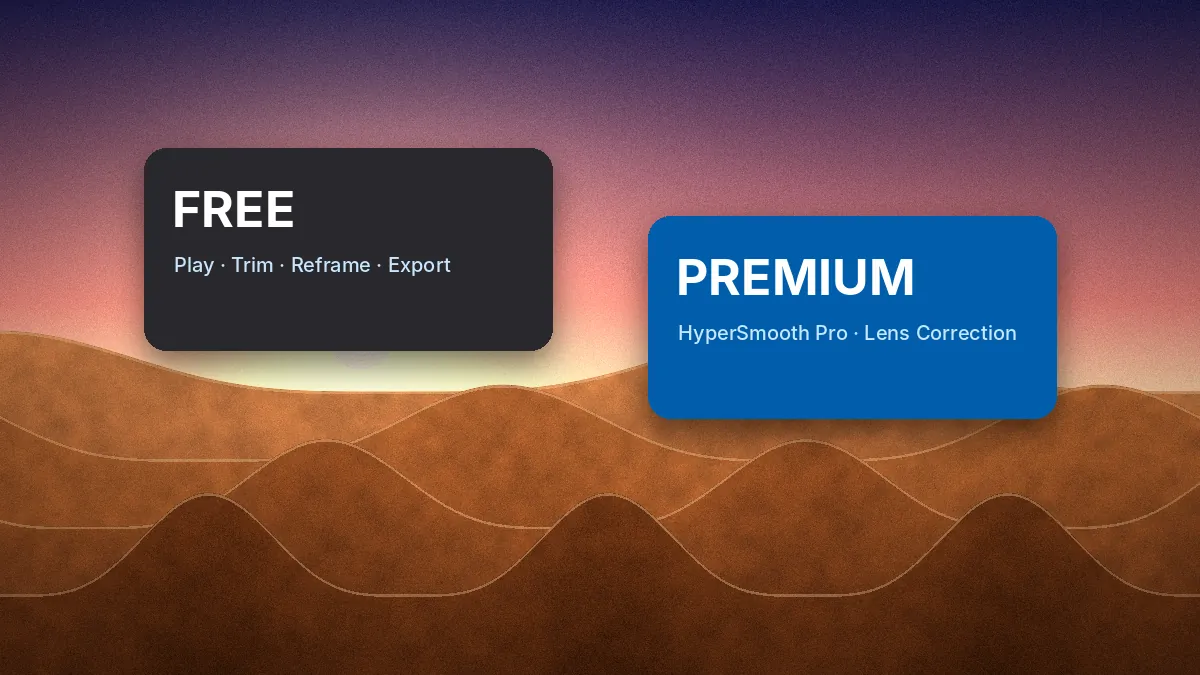
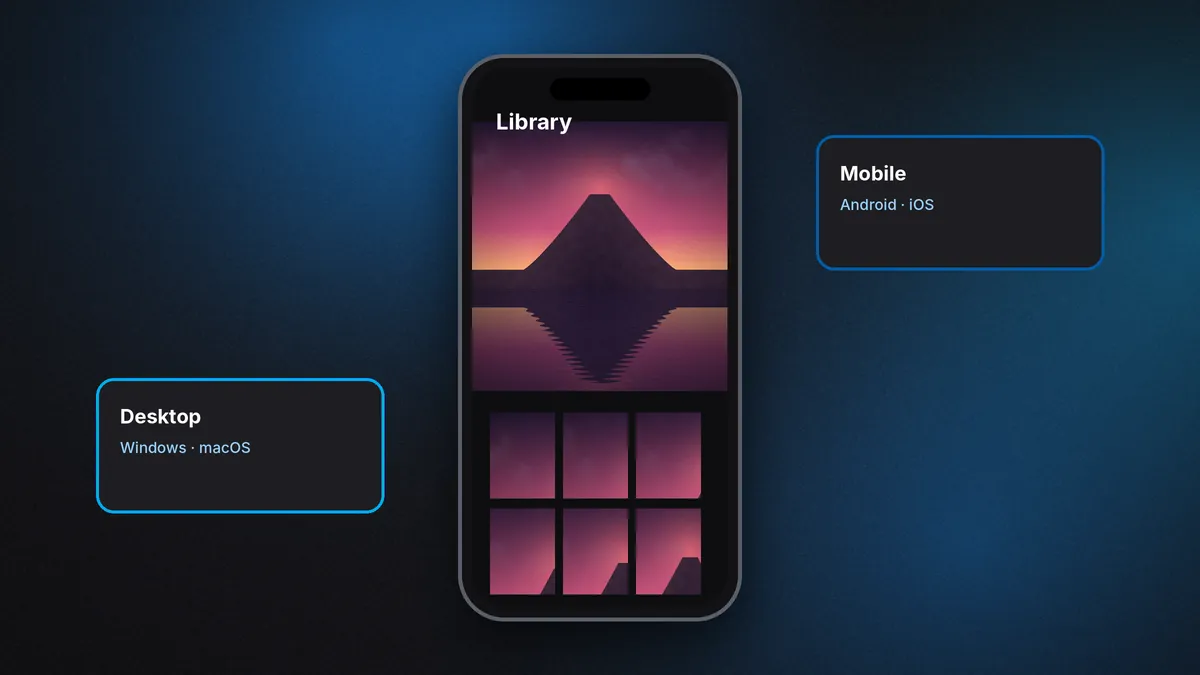
GoPro acquired ReelSteady and, in April 2022, released GoPro Player + ReelSteady for Mac and Windows. That update did three important things:
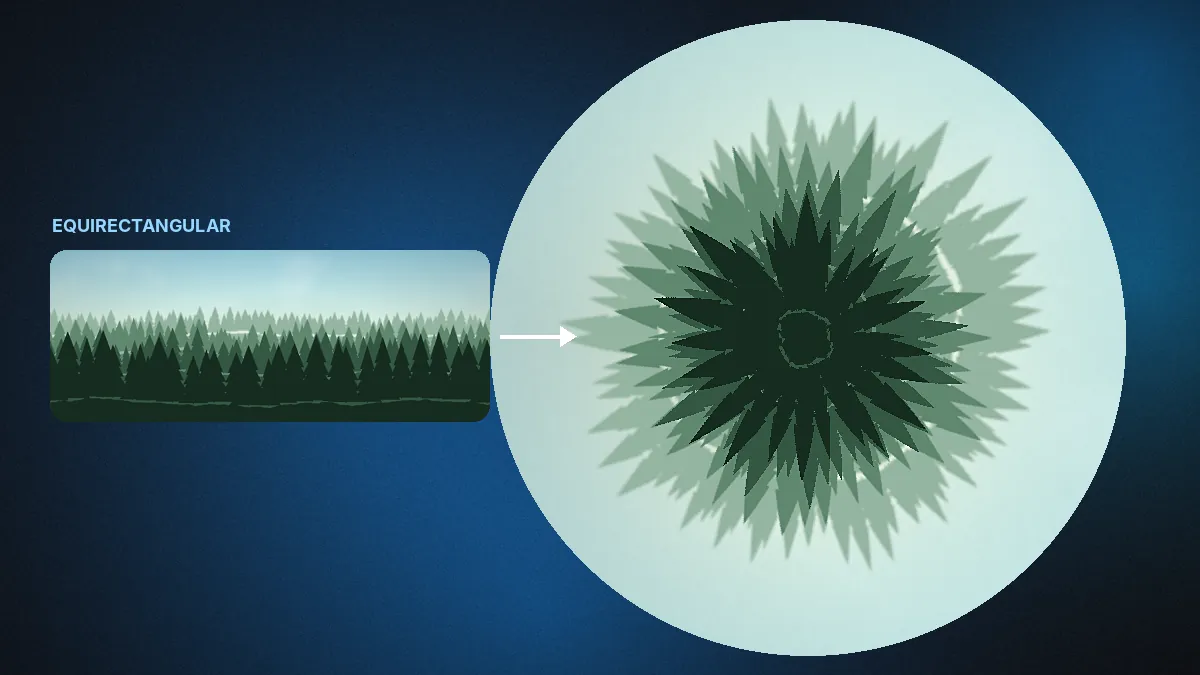
- It merged ReelSteady stabilization into GoPro Player, which already handled playback and 360 reframing.
- It made stabilization work on footage shot with in-camera HyperSmooth turned on, for HERO8 and newer cameras — previously you had to record with stabilization off.
- It added lens correction and batch export, alongside real-time playback of the stabilized result.
Premium features were sold as a one-time in-app purchase at launch. Existing ReelSteady Go customers could use their activation key to unlock them. In February 2024 GoPro introduced its Premium+ subscription, which bundles the same stabilization under the name HyperSmooth Pro. Today GoPro's product page describes the app as "Player with HyperSmooth Pro".
How gyro-based stabilization works
Most software stabilizers analyze the picture. They track features from frame to frame, estimate how the camera moved, and counter that movement. This works well on calm footage and badly on exactly the clips that need help most: fast motion, motion blur, low light, water, sky or anything without clear detail to track.
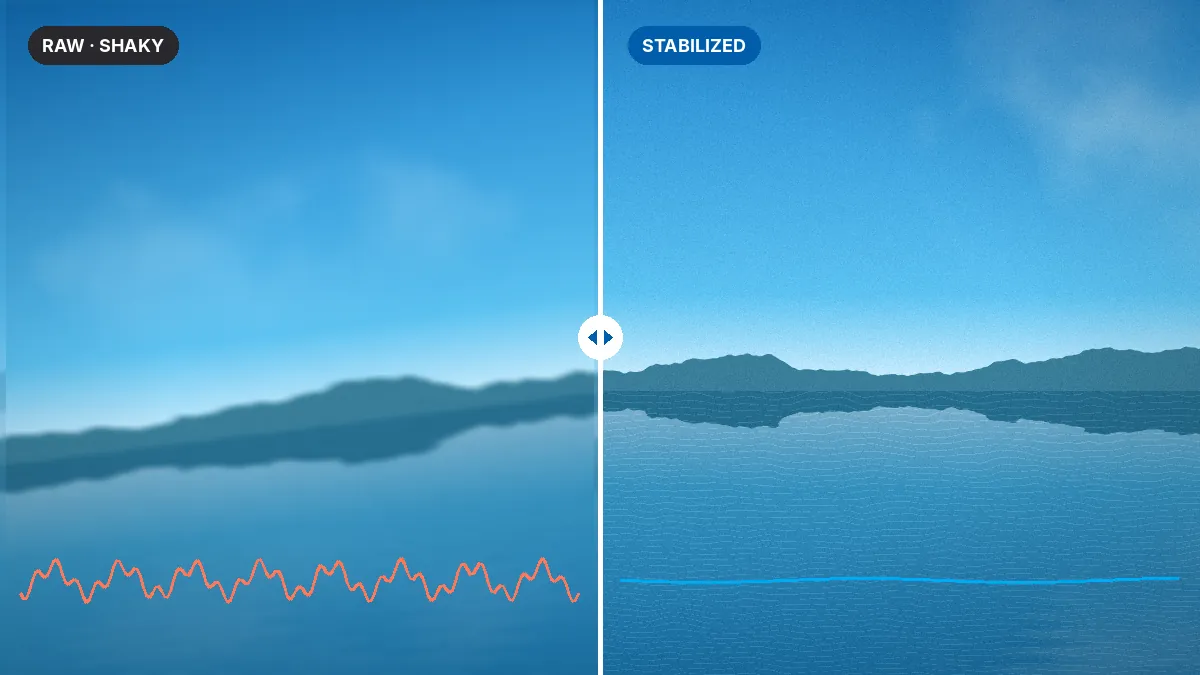
GoPro cameras record a different source of truth. A gyroscope and accelerometer inside the camera measure rotation and movement hundreds of times per second and write that data into the video file alongside the picture. HyperSmooth Pro reads that data instead of guessing from pixels. Because it knows exactly how the camera rotated at each instant, it can:
- Counter-rotate each frame precisely, even in a blur of trees or spray.
- Correct for rolling-shutter distortion, which bends vertical lines during fast pans.
- Keep the horizon level through rolls that would confuse a visual tracker.
- Do all of this fast enough to show the result live during playback.
The trade-off is crop. To rotate and shift each frame without exposing black edges, the stabilizer zooms in slightly. More smoothing generally means more movement to absorb and therefore more crop.
Supported cameras and shooting modes
Because the method depends on gyro data in the file, support is camera-specific:
| Camera | HyperSmooth Pro support |
|---|---|
| HERO13, HERO12, HERO11, HERO11 Mini, HERO10, HERO9, HERO8 | All video modes, including clips recorded with HyperSmooth on |
| HERO7, HERO6, HERO2018, HERO5, HERO5 Session | Only clips recorded with EIS / HyperSmooth off |
| MAX-series 360 cameras | Not available for 360 content — use World Lock and reframing |
GoPro's App Store notes add a few exclusions: Tripod mode on HERO10 and HERO11 is not supported, and footage not captured in a regular video mode, such as TimeWarp or Time Lapse, cannot be stabilized.
Shooting for the best results
You can stabilize almost any clip from a supported camera, but how you record makes a real difference to the final image.
Use the widest lens mode
Stabilization needs spare picture around the edges. Recording in a wide field of view — Wide, SuperView or the HyperView mode on newer cameras — gives the stabilizer room to work and leaves more of your frame after cropping.
Consider turning in-camera stabilization off
HERO8 and later cameras support stabilization with HyperSmooth on, which is convenient. Many FPV pilots still record with it off: the in-camera pass already crops the image, and stacking two stabilizers leaves less margin. If you plan to use HyperSmooth Pro on every clip, test both ways on your own rig.
Watch your shutter speed
Stabilization removes shake but not motion blur. When a shaky clip is smoothed, blur from fast shutter-open movement can look like smearing. In bright conditions, many pilots use ND filters to set a slower, consistent shutter and accept natural motion blur, or deliberately keep shutter speed fast for crisp frames. Both are valid; inconsistent auto shutter is what looks wrong.
Setting HyperSmooth Pro in Player
Open a supported clip and enable HyperSmooth Pro in the stabilization controls. The exact layout shifts between Player versions, but the key controls are consistent:
- Smoothness sets how aggressively camera motion is filtered. Low values keep the feel of the movement and remove only jitter; high values produce a gliding, gimbal-like look.
- Crop / zoom controls how far the image is enlarged to hide edges. Too little, and black borders appear during big movements; too much wastes resolution.
- Horizon leveling or lock holds the horizon steady. Useful for cars, boats and bikes; often switched off for FPV where you want the roll of a turn to show.
- Lens correction straightens fisheye curvature, giving a more natural, cinema-like perspective.
Because the preview is live, the best approach is to scrub to the roughest part of the clip, set smoothness and crop there, and then check calmer sections to confirm the movement still feels natural.
Finding the natural-looking setting
The most common mistake with powerful stabilization is overdoing it. Footage that is too smooth floats; it loses the sense of speed and effort that made the shot worth recording. A few guidelines:
- Running, hiking, walking: moderate smoothness. Leave a little footstep rhythm.
- Mountain biking and moto: moderate to high smoothness, horizon lock on for chest or helmet mounts.
- Cinematic FPV: high smoothness, horizon lock off, lens correction on.
- Freestyle FPV: lower smoothness so flips and rolls keep their punch.
The FPV stabilization workflow guide goes deeper into rig setup and settings for drones.
HyperSmooth Pro versus in-camera HyperSmooth
In-camera HyperSmooth is excellent and gets better with each HERO generation. So why pay for a desktop version? Three reasons:
- It is reversible. In-camera stabilization is baked in at recording time. Desktop stabilization leaves the original untouched; you can change your mind later.
- It has more information. Working after the fact, the software can look ahead in the gyro data and plan a smoother path than a camera processing frames in real time.
- It offers control. Smoothness, crop, horizon behavior and lens correction are adjustable per clip.
For casual footage, in-camera HyperSmooth is often enough. For rough-mounted, high-vibration or high-speed clips, the desktop tool is in a different class.
Performance and export
Real-time stabilization asks a lot of your computer. GoPro states that HyperSmooth Pro requires a powerful machine and that playback may struggle on weaker ones. If the preview stutters, it is a preview problem only — exports will be correct, just slower to render. For multiple clips, set each one, then send the whole set to the batch export queue. Files export at the recorded resolution or lower; Player does not upscale, so the stabilization crop effectively reduces the output size if you choose to match source resolution.
Common myths about ReelSteady in GoPro Player
"ReelSteady no longer exists"
The name has changed, but the capability has not disappeared. The stabilization GoPro acquired as ReelSteady lives on inside GoPro Player as HyperSmooth Pro.
"You must shoot with HyperSmooth off"
That was true for older cameras and for ReelSteady Go. Since 2022, HERO8 and newer footage can be stabilized in all modes, including clips recorded with HyperSmooth on. Turning it off is still a valid choice for maximum field of view, but it is no longer mandatory on modern cameras.
"It works on any camera"
HyperSmooth Pro reads GoPro's gyro metadata and is designed for GoPro cameras. Footage from other brands is not what it was built for.
"Stabilization fixes blur"
It removes camera movement, not motion blur already baked into each frame. Shutter speed at recording time determines how much blur remains.
A sample session, start to finish
A typical stabilization session takes only a few minutes per flight or ride. Copy the clips to an SSD, open the roughest one, enable HyperSmooth Pro and scrub to the worst moment. Raise smoothness until the jitter disappears, then raise crop until no black edges appear. Toggle horizon lock and lens correction to taste, play the clip through once at full speed, and add it to the batch queue. Apply the same settings to similar clips from the session, check the first export, and let the queue finish the rest.
Is it worth paying for?
If you shoot FPV, mount cameras on vehicles, or regularly produce clips where shake ruins otherwise good footage, HyperSmooth Pro is the single most useful upgrade in the GoPro software ecosystem. If you shoot mostly handheld travel clips with in-camera HyperSmooth on, you may never need it. Our GoPro Player price guide compares the one-time and subscription routes.
In short: GoPro Player + ReelSteady is GoPro Player with gyro-based stabilization built in, now sold as HyperSmooth Pro. It reads the motion data your camera records, works on HERO8+ footage in any mode, previews in real time, and exports through the same batch queue as everything else in Player.