GoPro Player Download: The Safe Way to Install It on Windows and Mac
Where the official builds live, what to check before you click install, and how to spot the repackaged installers that circulate on download portals.
Search for a GoPro Player download and the results page tells you a lot about how software spreads in 2026. Near the top you will find GoPro's own product page and the two official store listings. Below them sits a long tail of download portals, mirror sites and "free premium" offers, each wrapping the same app name around installers that GoPro never built. This guide walks through the clean route — the one that takes two minutes and leaves nothing on your machine you did not ask for — and explains why the shortcuts are not shortcuts at all.
What you are actually downloading
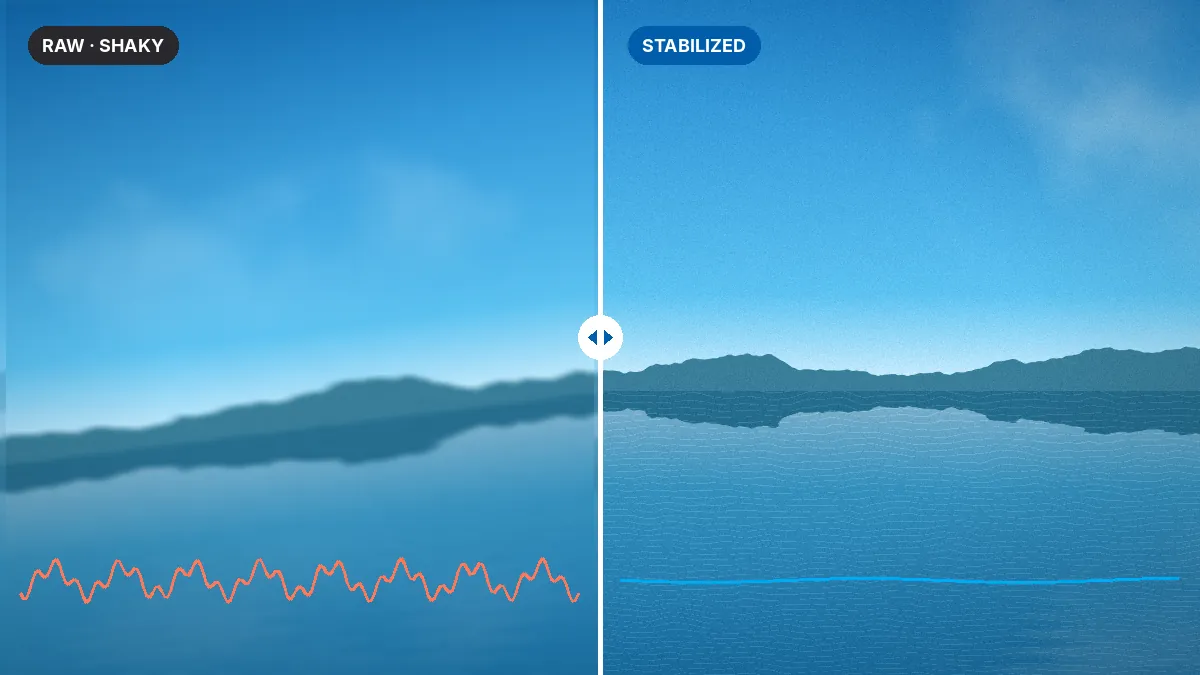
GoPro Player is GoPro, Inc.'s desktop application for Windows and macOS. It plays files from GoPro HERO and MAX cameras, reframes 360 footage into flat video, trims clips frame by frame, grabs full-resolution stills from video, levels horizons and exports to H.264, H.265, Apple ProRes and CineForm. Since April 2022 it has also carried the stabilization engine GoPro acquired as ReelSteady, now branded HyperSmooth Pro.
Two details matter before you download anything:
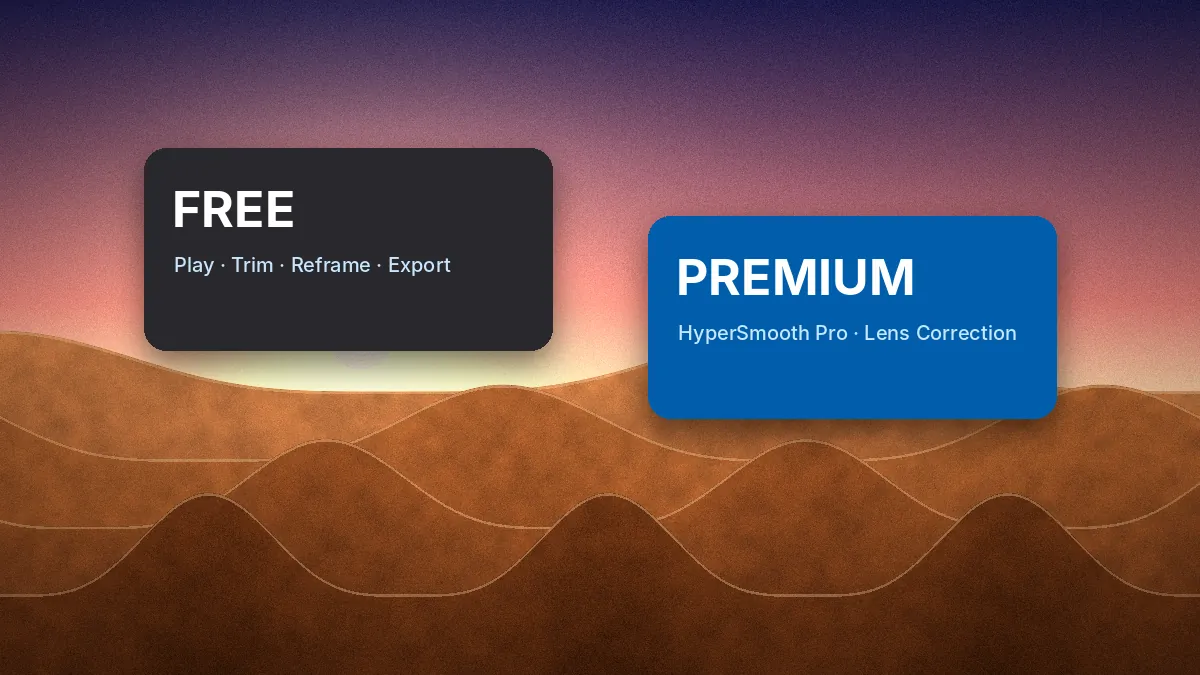
- The core app is free. Playback, reframing, trimming, frame grab and export cost nothing. There is no "full version" to hunt for.
- Premium features unlock inside the app. HyperSmooth Pro and lens correction are enabled through an in-app purchase or an eligible GoPro subscription. No separate installer, key generator or patch is involved.
Once you know those two facts, almost every risky download offer explains itself. Anything that promises a "pro" or "unlocked" installer is selling a problem that does not exist with a solution you should not trust.
The two official sources
GoPro distributes Player through exactly two channels, and its own product page links to both:
| Platform | Official source | Minimum system |
|---|---|---|
| Windows | Microsoft Store (publisher: GoPro, Inc.) | Windows 10 or later |
| macOS | Mac App Store (developer: GoPro, Inc.) | macOS 10.14 Mojave or later |
Store distribution has practical advantages beyond trust. The store verifies the package signature, installs to a protected location, removes the app cleanly if you uninstall it, and delivers updates automatically. That last point matters for a camera app: when GoPro ships a new HERO or MAX model, support for its files arrives through a Player update, and the store pushes it to you without any effort.
Before you click install: a five-point check
Most failed installs and "it opens but nothing plays" reports come from skipping a quick compatibility check. Run through these first.
1. Operating system version
On Windows, press Win + R, type winver and press Enter. Anything from Windows 10 upward is supported, and Windows 11 is fine. On a Mac, open the Apple menu and choose About This Mac. Mojave (10.14) is the floor, though a newer macOS is a better experience.
2. HEVC decoding
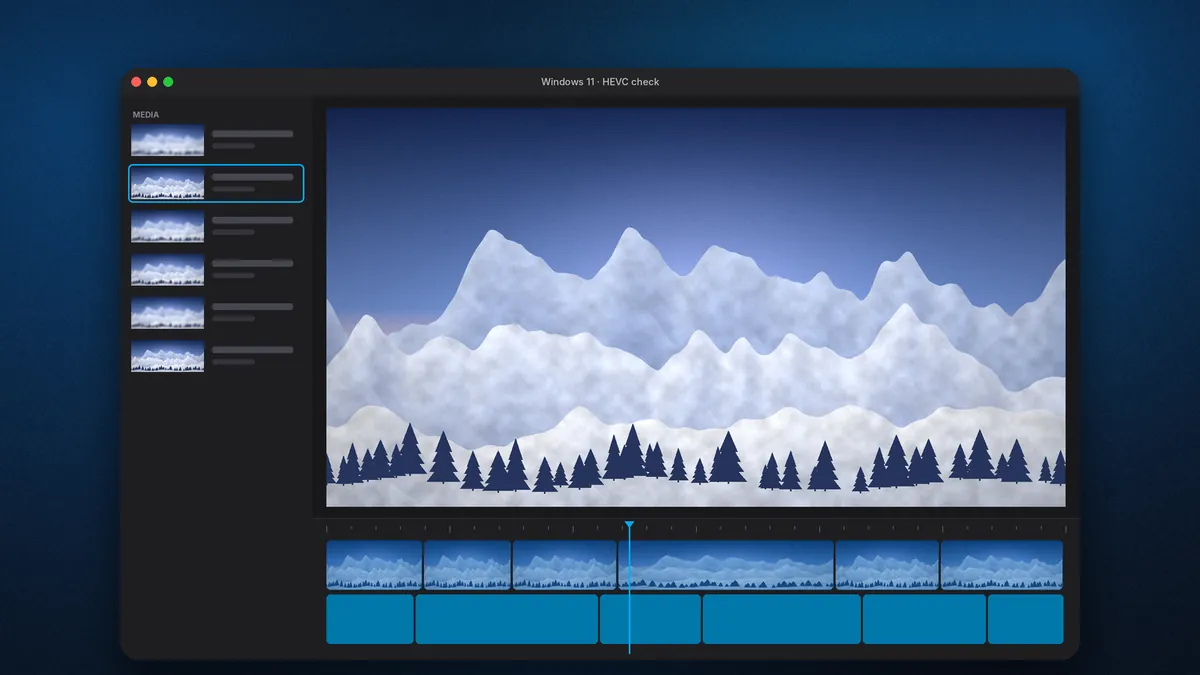
Modern GoPro cameras record H.265 (HEVC) in most high-resolution modes. GoPro's own requirements list a graphics card that supports HEVC decoding. Any Apple silicon Mac and most PCs from the last several years qualify. On Windows, you may also need Microsoft's HEVC Video Extensions for system-level playback — if a clip shows a black frame with working audio, this is the first suspect.
3. Free disk space
The app itself is small. Your exports are not. A ten-minute 5.3K clip exported to ProRes can run to tens of gigabytes. Plan for free space on a fast SSD equal to at least twice the size of the footage you intend to process in one session.
4. Store account
You need a Microsoft account signed into the Microsoft Store, or an Apple Account in the App Store. If you plan to buy HyperSmooth Pro, use the account you will keep long term; purchases are tied to it.
5. Graphics drivers (Windows)
Update the GPU driver from NVIDIA, AMD or Intel directly. Windows Update often lags behind, and stabilization performance depends heavily on the driver.
Step-by-step: Windows 10 and Windows 11
- Open the official listing. Use the Windows button in the download section of this site, which points to GoPro's Microsoft Store page, or open the Microsoft Store app and search "GoPro Player". Confirm the publisher reads GoPro, Inc.
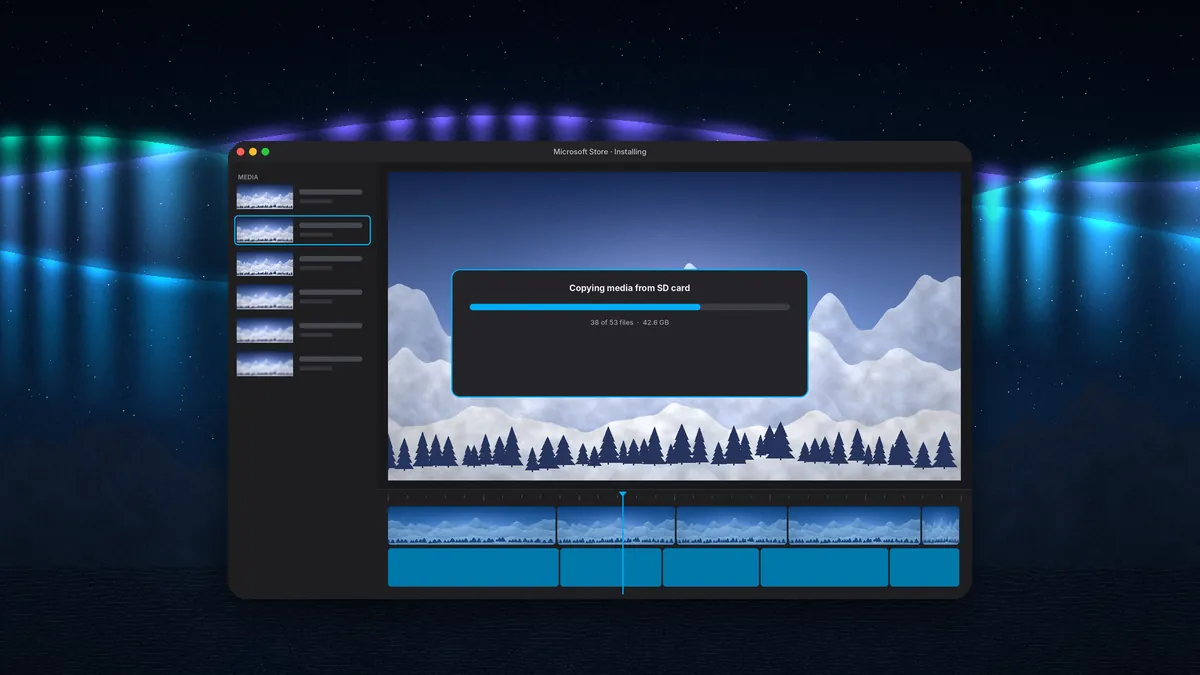
- Select Get (or Install). Sign in if prompted. The Store downloads, verifies and installs the package in one step.
- Launch it from Start. Search "GoPro Player" in the Start menu. Pin it to the taskbar if you will use it after every shoot.
- Open a test clip. Drag a recent video into the window. If it plays smoothly, you are finished. If it stutters or shows black, jump to the troubleshooting section below.
Windows-specific setup — power plans, HEVC extensions and GPU selection on laptops with two graphics chips — is covered in depth in our GoPro Player for Windows 11 and Windows 10 guide.
Step-by-step: macOS
- Open the Mac App Store and search "GoPro Player", or use the Mac button on our download section. The developer should read GoPro, Inc.
- Select Get, then Install, and authenticate with your Apple Account password or Touch ID.
- Launch from Applications or Launchpad.
- Allow file access. The first time Player reads from an SD card or external drive, macOS asks for permission. Allow it; otherwise the card appears empty.
Note that the Mac App Store also lists a separate GoPro Player app for Apple TV. That is a viewer for the living room, not the desktop editing tool. Make sure the listing you open shows Mac screenshots.
Why third-party download portals are a bad trade
Some software download portals do nothing more than link to the official store, and those are harmless if pointless. The problem is the rest. A quick survey of what circulates under the GoPro Player name turns up several patterns:
- Bundled installers that add browser extensions, "PC optimizers" or adware alongside the real app.
- Outdated copies of older Player versions, missing support for current cameras and recent fixes.
- "Unlocked" builds claiming to include HyperSmooth Pro for free. These require modified binaries, and modified binaries are the classic carrier for credential stealers and cryptominers.
- Look-alike names such as "GoPro Player Pro" or "GoPro Player Premium Edition", products GoPro has never released.
A video tool also needs broad file access — to your cards, drives and media folders — which makes a compromised one particularly damaging. The official store versions cost nothing, so there is no saving to offset the risk.
Rule of thumb: if a download page offers GoPro Player as an .exe, .dmg or .zip file instead of sending you to a store listing, close the tab.
Unlocking HyperSmooth Pro the legitimate way
After installing, open Player and look for the HyperSmooth Pro or premium prompt when you enable stabilization on a supported clip. You have two routes:
- In-app purchase through the Microsoft Store or App Store, billed to your store account.
- GoPro subscription — GoPro's Premium+ tier has included HyperSmooth Pro since early 2024. Sign in to your GoPro account inside Player to activate it.
Our GoPro Player price guide compares those two routes in detail, including who benefits from each.
Troubleshooting a download that will not finish
Microsoft Store stuck at "Pending" or 0%
- Check that the system date and time are set automatically.
- Sign out of the Store, restart it and sign back in.
- Run Settings → System → Troubleshoot → Other troubleshooters → Windows Store Apps.
- Install pending Windows updates; the Store sometimes waits on them.
Mac App Store shows "Get" but nothing happens
- Sign out and back into your Apple Account in the App Store menu.
- Confirm your macOS version meets the minimum; incompatible systems may hide the install option.
- Restart the Mac to clear a stuck download queue.
Installed, but clips do not open
This is almost always codec or hardware. Update the GPU driver, confirm HEVC support, and try a clip shot in H.264 to isolate the issue. If H.264 plays and H.265 does not, the decoder is your problem, not Player.
What to expect on first launch
The first time you open Player, it presents a simple workspace waiting for media. There is no account required to use the free tools. Open a folder of clips or drag files into the window, and Player identifies the camera, resolution and lens mode from each file's metadata. 360 files from MAX cameras open in an interactive view you can drag around; traditional HERO clips play as normal video. If you plan to use HyperSmooth Pro, enabling it on a supported clip is the moment Player asks you to unlock it.
Keeping Player current
Because updates come through the store, keeping current is mostly automatic. A few habits help anyway:
- Leave automatic app updates on in the Microsoft Store or App Store settings.
- Update Player before working with footage from a newly released camera.
- Update camera firmware too. GoPro occasionally changes how metadata is written, and Player and firmware are designed to move together.
Uninstalling cleanly
On Windows, open Settings → Apps → Installed apps, find GoPro Player and choose Uninstall. On macOS, drag the app from Applications to the Trash or remove it in Launchpad. Store-installed apps do not scatter files around your system, and your footage and exports stay exactly where you saved them. Purchases remain tied to your store account, so reinstalling later restores premium access.
Quick summary
The safe GoPro Player download in one line: get it from the Microsoft Store on Windows 10 or 11, or the Mac App Store on macOS 10.14 or later, published by GoPro, Inc. The core tools are free; HyperSmooth Pro unlocks inside the app. Anything offering a separate "pro" installer is not worth the risk.
With Player installed, the next step depends on what you shoot. FPV pilots should read the FPV stabilization workflow, MAX owners will get the most from the 360 reframing guide, and anyone with a full card to process should start with batch export settings.