GoPro Player for Windows 11 and Windows 10: Setup, HEVC and Performance Tuning
Installing is the easy part. This is how to make GoPro Player run smoothly on a Windows PC — codecs, graphics selection, power settings and storage that keep 5.3K playback fluid.
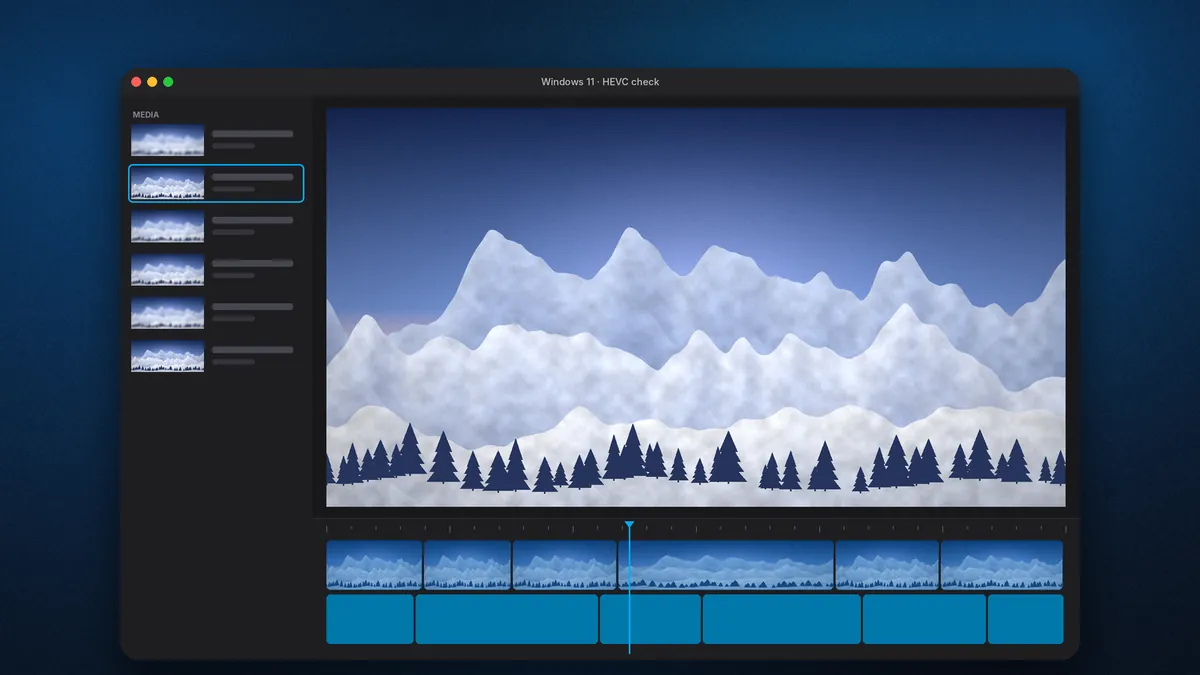
GoPro Player for PC installs in a couple of minutes from the Microsoft Store. Getting it to play 5.3K HEVC footage without dropped frames — and to run HyperSmooth Pro stabilization in real time — takes a little more attention. Windows machines vary enormously, and the difference between a Player that feels instant and one that stutters usually comes down to four settings most people never touch. This guide covers them for both GoPro Player for Windows 11 and GoPro Player for Windows 10, which behave the same way in nearly every respect.
Windows 10 versus Windows 11: does it matter?
GoPro lists Windows 10 or later as the requirement, so both are fully supported. In practice, the operating system version matters far less than the hardware underneath and the drivers that run it. Windows 11 does bring a few quality-of-life advantages for video work:
- A cleaner per-app graphics preference screen, which makes forcing Player onto a dedicated GPU easier.
- Better handling of hybrid processors with performance and efficiency cores, which helps long exports.
- Microsoft ended standard support for Windows 10 in October 2025, so new driver and codec fixes increasingly target Windows 11 first.
If your PC qualifies for Windows 11, upgrading is a reasonable move. If it does not, Player still runs well on Windows 10 with current drivers.
Step 1: Install from the Microsoft Store
Open the Microsoft Store, search for GoPro Player and confirm the publisher is GoPro, Inc. — or use the Windows button on our download section. Select Get, let the Store handle installation, then launch Player from the Start menu. Our download guide covers why the Store build is the only one worth using.
Step 2: Sort out HEVC before anything else
Most GoPro recording modes above 4K, and many below it, use H.265 (HEVC). Windows does not ship with a full HEVC decoder enabled for every app. Two pieces have to line up:
- Hardware decoding on the GPU. GoPro's requirements specify a graphics card that supports HEVC decoding. NVIDIA GeForce GTX 10-series and newer, AMD Radeon RX 400-series and newer, and Intel graphics from roughly the 7th-generation Core era onward include HEVC decode blocks. Newer chips handle higher resolutions and 10-bit HEVC better.
- The system codec. Microsoft offers HEVC Video Extensions through the Microsoft Store. Many PCs ship with it preinstalled through the device maker. If yours does not, install it.
A quick test: open a recent GoPro clip in Player. Smooth picture means you are set. Audio with a black or green frame means the decode path is broken — update the GPU driver first, then confirm the extension is installed.
10-bit footage (available on HERO11 and newer in some modes) is harder to decode than 8-bit. A PC that plays 8-bit 4K perfectly can still stumble on 10-bit 5.3K. Test both if you shoot both.
Step 3: Update graphics drivers directly from the vendor
Windows Update delivers drivers, but often older ones validated for broad compatibility rather than performance. For video work:
- NVIDIA: install the Studio Driver from NVIDIA's site or the NVIDIA app. Studio drivers are tested against creative applications.
- AMD: install the current Adrenalin driver package.
- Intel: use the Intel Driver & Support Assistant or download the latest Arc/Iris Xe graphics driver.
Restart after installing, even if the installer does not ask.
Step 4: Make laptops use the right graphics chip
Many gaming and creator laptops have two GPUs: a power-saving integrated chip and a dedicated one. Windows decides which an app uses, and it does not always pick the fast one for a video player.
- Open Settings → System → Display → Graphics.
- Find GoPro Player in the list. Store apps appear automatically on Windows 11; on Windows 10 you may need to choose "Microsoft Store app" and add it.
- Select it, choose Options, and set High performance.
- Restart Player.
On machines where the integrated GPU drives the display, this setting can make the difference between choppy and fluid stabilized playback.
Step 5: Use a performance power plan while editing
Laptops on battery throttle the CPU and GPU aggressively. Even plugged in, the default "Balanced" mode can hold clocks back. While you work in Player:
- Plug into the charger.
- On Windows 11, open Settings → System → Power & battery and set Power mode to Best performance.
- On Windows 10, click the battery icon and drag the slider to Best performance.
- If your laptop vendor has its own utility (Armoury Crate, Lenovo Vantage, Dell Power Manager and similar), switch to its performance profile too.
Step 6: Storage that keeps up
Player reads big files fast. Working straight from an SD card in a cheap USB reader introduces a bottleneck you will mistake for a software problem.
- Copy footage to an internal NVMe SSD or a fast external SSD over USB 3.2 or Thunderbolt before stabilizing.
- Export to a different drive from the source when you can; reading and writing the same disk slows both.
- Keep at least 20% of the SSD free. Nearly full SSDs slow down noticeably on sustained writes.
What "good enough" hardware looks like
GoPro's official minimum is intentionally short. Here is what we would consider realistic for each workload on a Windows PC:
| Workload | Processor | Graphics | RAM |
|---|---|---|---|
| Playback, trim, export of 4K H.264 | Recent quad-core | Integrated with HEVC decode | 8 GB |
| 5.3K HEVC and 360 reframing | 6-core or better | Modern integrated or entry dedicated GPU | 16 GB |
| Real-time HyperSmooth Pro at 5.3K | 8-core or better | Mid-range dedicated GPU | 16–32 GB |
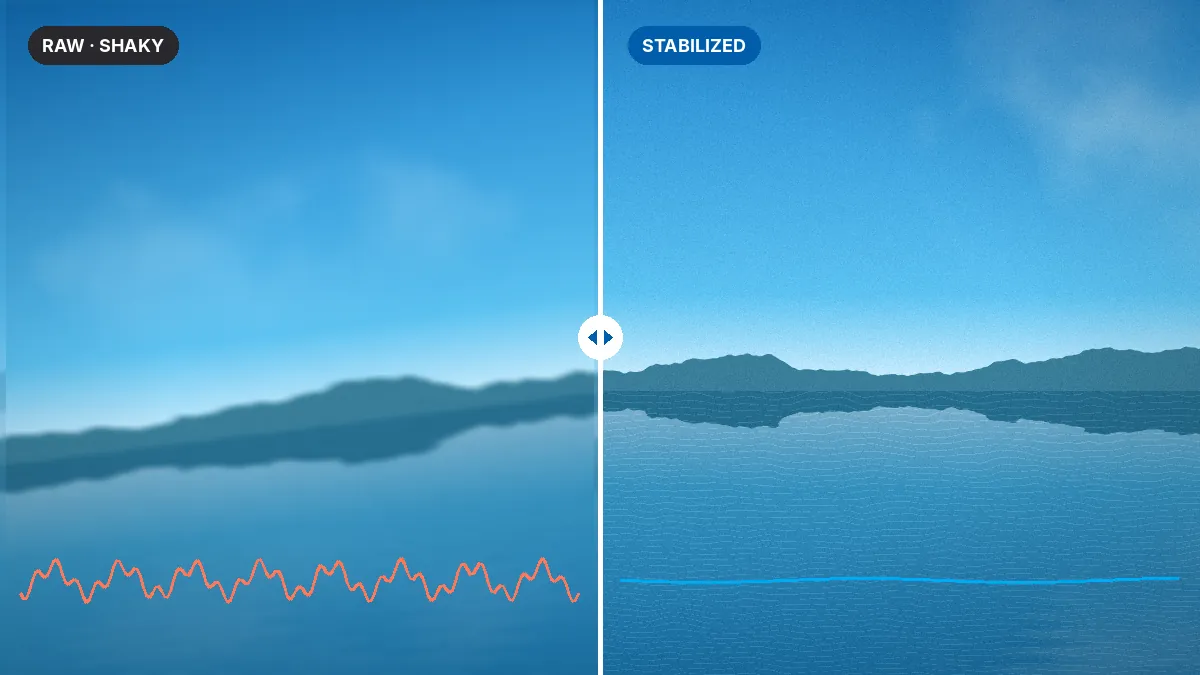
GoPro itself notes that HyperSmooth Pro needs a powerful computer and that real-time playback may struggle on inadequate machines. Weaker hardware still exports correctly — the preview is what suffers.
Fixing common Windows problems
Choppy playback even on a strong PC
Check the graphics preference (Step 4) and the power mode (Step 5) first. Then open Task Manager → Performance → GPU while a clip plays. If the "Video Decode" graph sits near zero, hardware decoding is not being used — reinstall the GPU driver and HEVC extension.
Player closes when opening certain clips
Update Player through the Store library (Library → Get updates). Clips from cameras released after your installed version can fail to load until Player is updated. Also confirm the file copied completely; interrupted SD card transfers produce truncated files.
Exports are slower than expected
Software encoding of H.265 at 5.3K is heavy. Exporting to H.264 for quick shares, or to an intermediate like CineForm for further editing, can be faster. Our batch export guide covers codec choices.
The Store will not install or update Player
Sign out and back into the Microsoft Store, run the Windows Store Apps troubleshooter, and install any pending Windows updates. Resetting the Store cache (press Win + R and run wsreset.exe) clears most stuck downloads.
Windows-specific habits that save time
- Pin Player to the taskbar and set it as the default app for your GoPro folder's MP4 files if it becomes your main viewer.
- Exclude your footage folder from real-time antivirus scanning only if you are confident in the source — scanning large video files during export slows things noticeably.
- Turn off "Storage Sense" cleanup on your export folder so finished renders are not swept up as temporary files.
- Batch export overnight and set Windows to stay awake while plugged in, under Power & battery → Screen and sleep.
When a Windows 10 PC is not enough
Older Windows 10 machines without HEVC hardware decoding can still play H.264 clips. If your camera supports it, recording in H.264 at 4K or below will keep an older PC useful. The trade-off is larger files and slightly lower efficiency than HEVC. For HyperSmooth Pro work on a machine that struggles, the exported result is unchanged — only the real-time preview suffers. Some users set stabilization on a short section, check the export, then queue the rest.
Using Player alongside a Windows editor
Many people use GoPro Player as the first stage of a longer edit in Premiere Pro, DaVinci Resolve or another Windows editor. Two points keep that hand-off smooth. First, export to an editing-friendly codec such as CineForm rather than H.265 when you plan heavy cutting or grading; HEVC is efficient for delivery but demanding to scrub on a timeline. Second, keep Player's exports in a dedicated folder that your editor imports from, so stabilized versions never get mixed up with untouched originals. Treat Player as the place where shake, framing and lens curvature are solved, and the editor as the place where story, colour and sound come together.
Multiple monitors and display scaling
On multi-monitor setups, keep Player on the display connected to the faster GPU where possible; on some desktops, monitors plugged into the motherboard rather than the graphics card force the integrated chip to handle the picture. High display scaling settings, common on 4K laptop screens, do not affect export quality, but a full-screen preview at very high resolution adds work for the GPU. If playback stutters only in full screen, try previewing in a window instead.
Checklist
GoPro Player for Windows 11 and 10, tuned: Store install from GoPro, Inc. · HEVC decode confirmed · vendor GPU driver · Player set to High performance graphics · Best performance power mode while working · footage on an SSD, not the SD card. Tick all six and the app runs as well as your hardware allows.
With playback sorted, the next stop for most Windows users is stabilization. Read GoPro Player + ReelSteady: the HyperSmooth Pro guide to understand what the premium tool does and how to set it.